- Sign in Autodesk platform: https://accounts.autodesk.com/register
- Once you register, go to: https://www.autodesk.com/education/edu-software/overview
- Find Maya and click Select:

- Select Student:

- In the next page, verify that the details unders Account Information match those you signed up with.
In the Education Role field, select Student.
In the Date of Birth field, fill your birthday.
Click Continue.
- Fill Educational institution details:
- Country: Israel
- Address: Aseret HaShvatim 25, Ashkelon, Israel
- City: Ashkelon
- Postal code: 7868021
- Institution Type: University/Post-Secondary
- Name of Educational Institution: GameReady
- School website: gameready.co.il
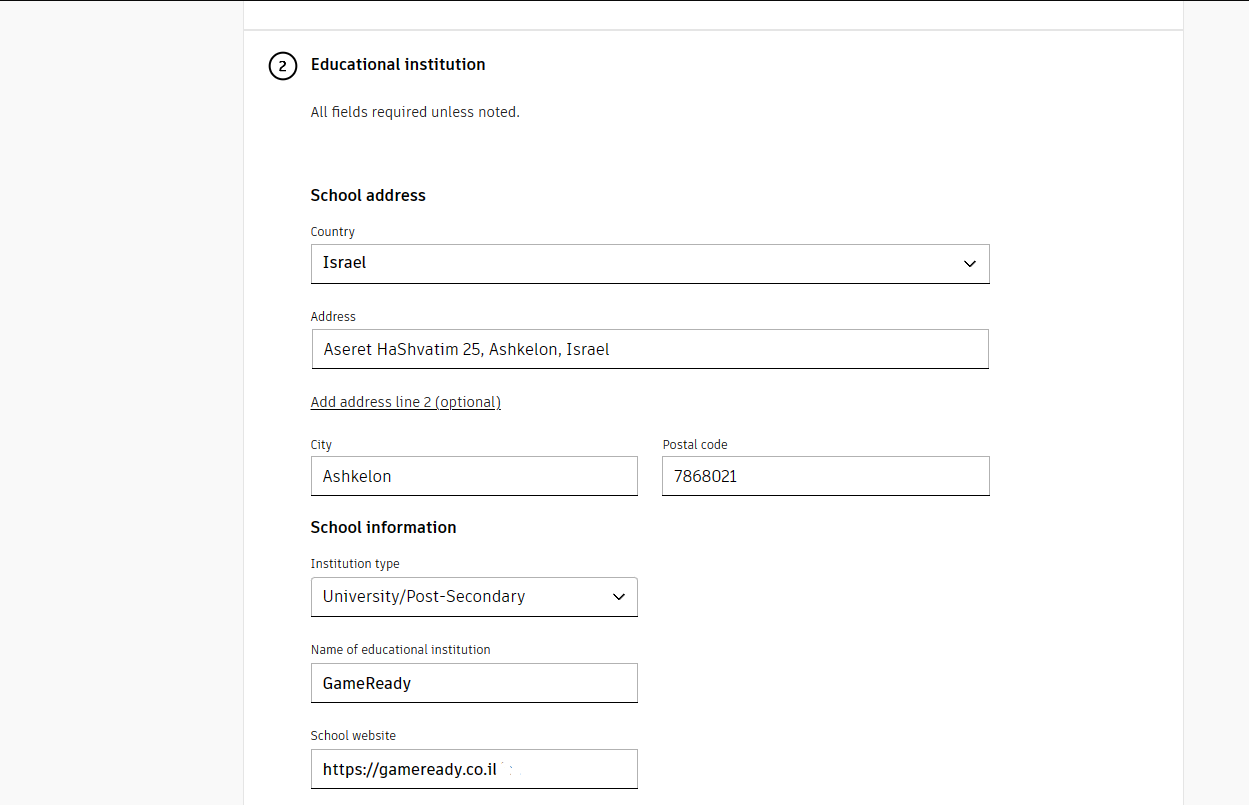
- Enrollment and Graduation dates are specified in license confirmation document sent by us.
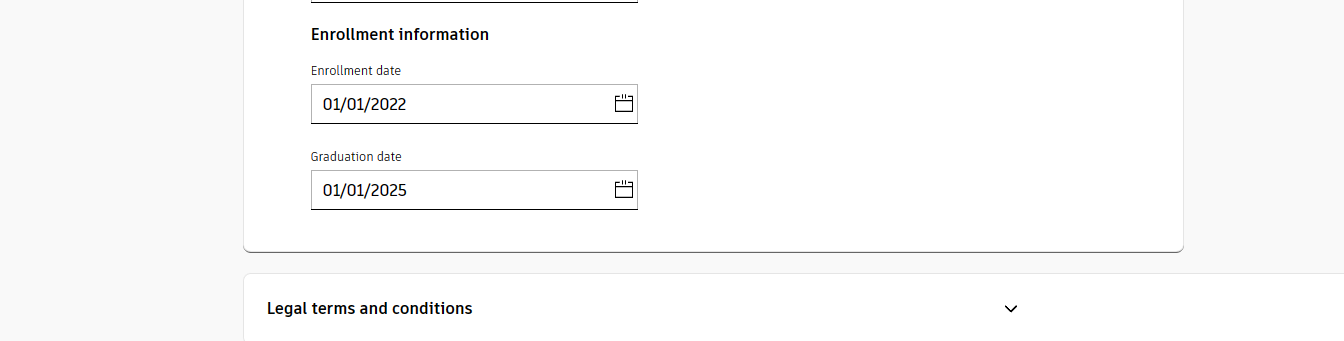
- Check the checkbox to verify the details and click ‘Continue’

- After it, you will be moved to this page.Here, you should upload the license confirmation document which GameReady gave you.After ensuring that the document is uploaded correctly, click ‘Continue’.
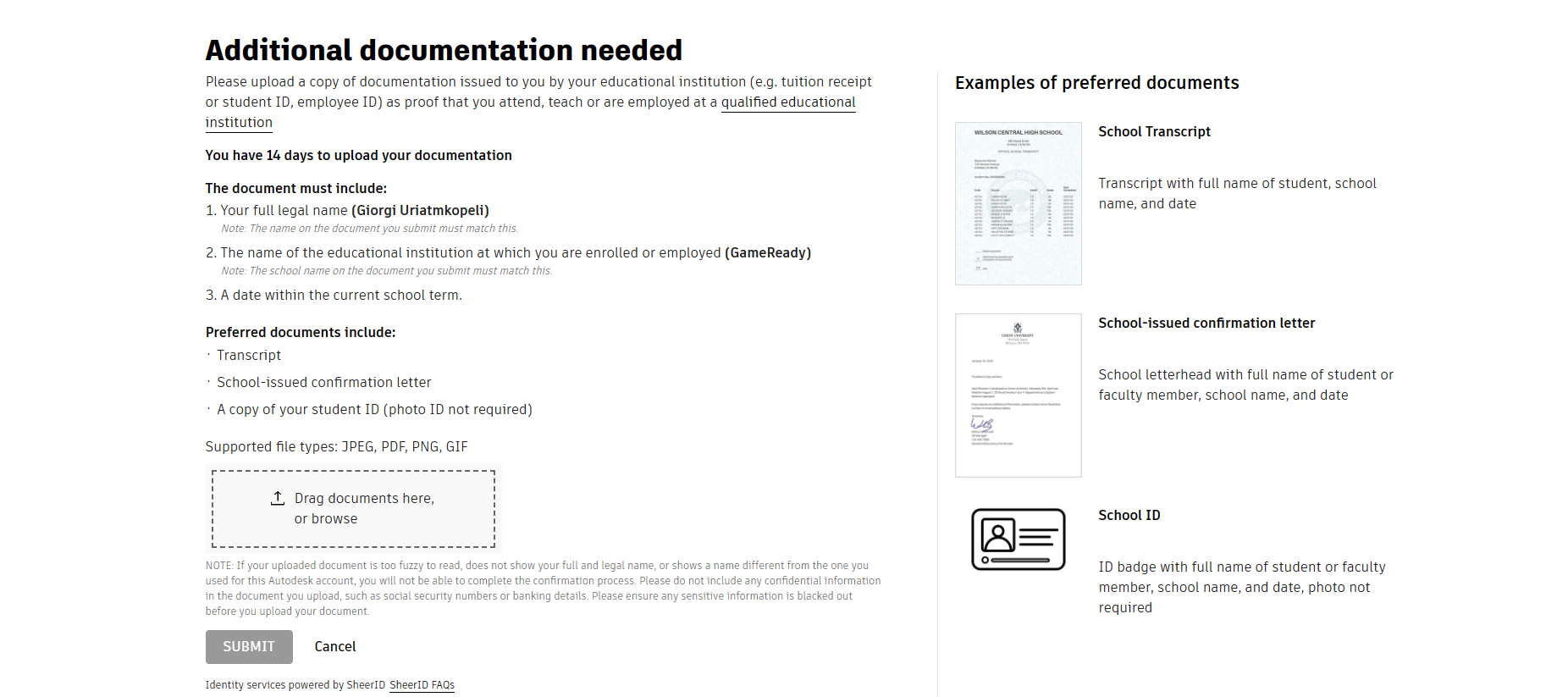
- Click the Submit button at the top right of the window.
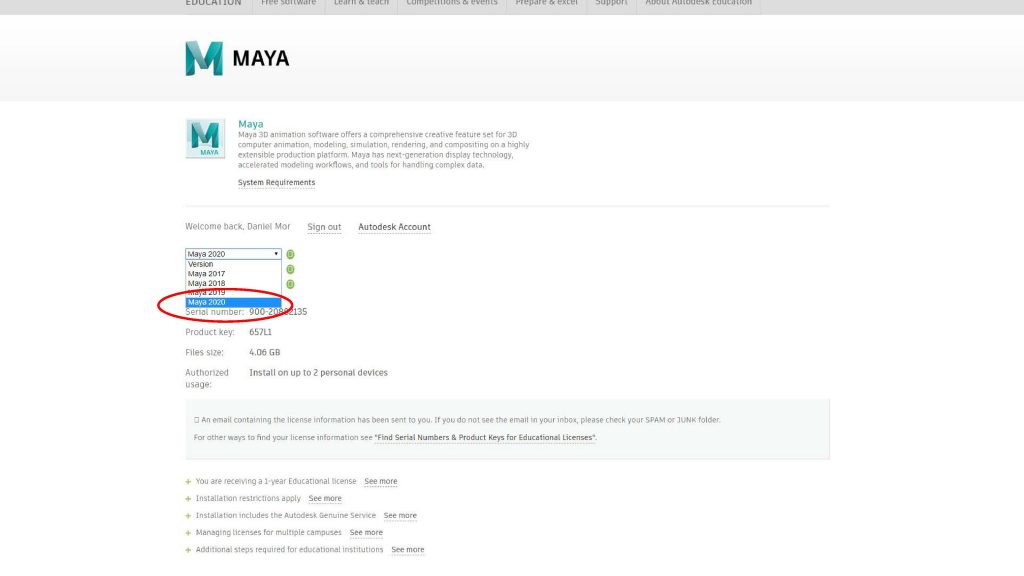
- After a fairly short test (usually less than two hours) you will receive permission to download the software, congratulations! 😀Download the latest software (image from 2020 but there may be newer versions, choose the latest)
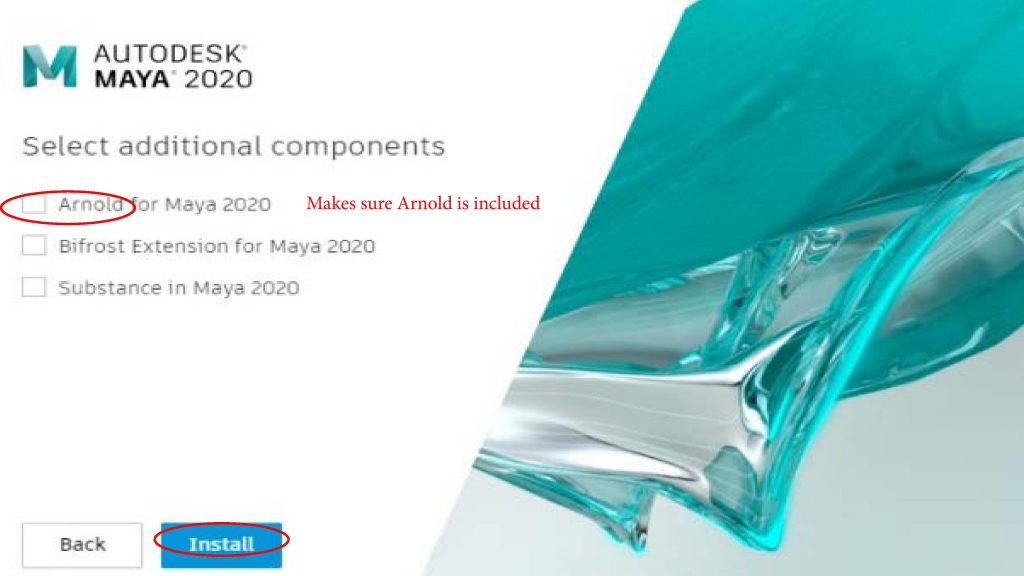
- Install as usual.Pay attention to tick the option of “Arnold for Maya”!
 on