Using work email via Gmail

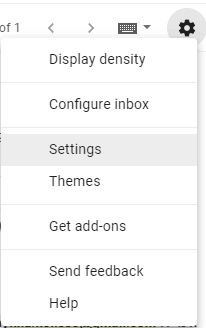
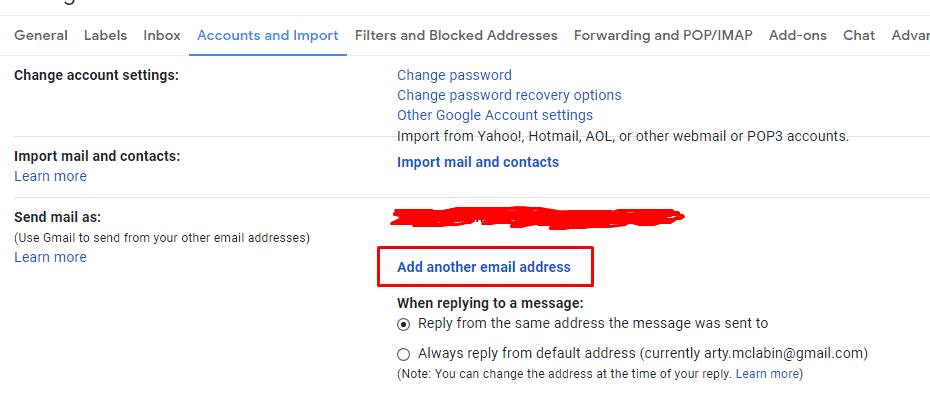
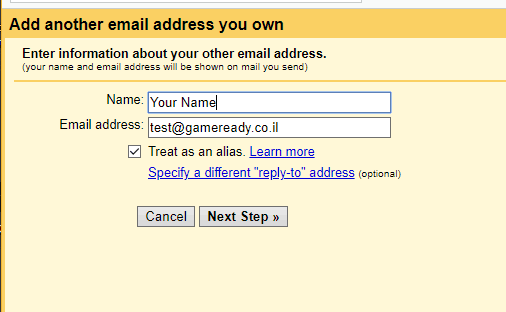
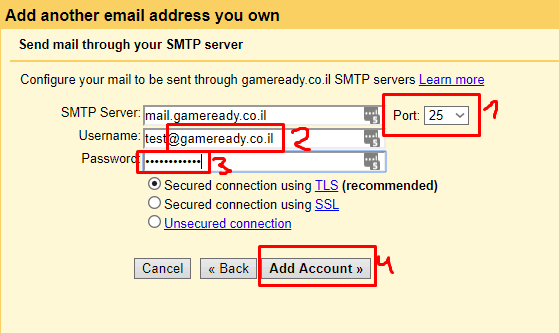
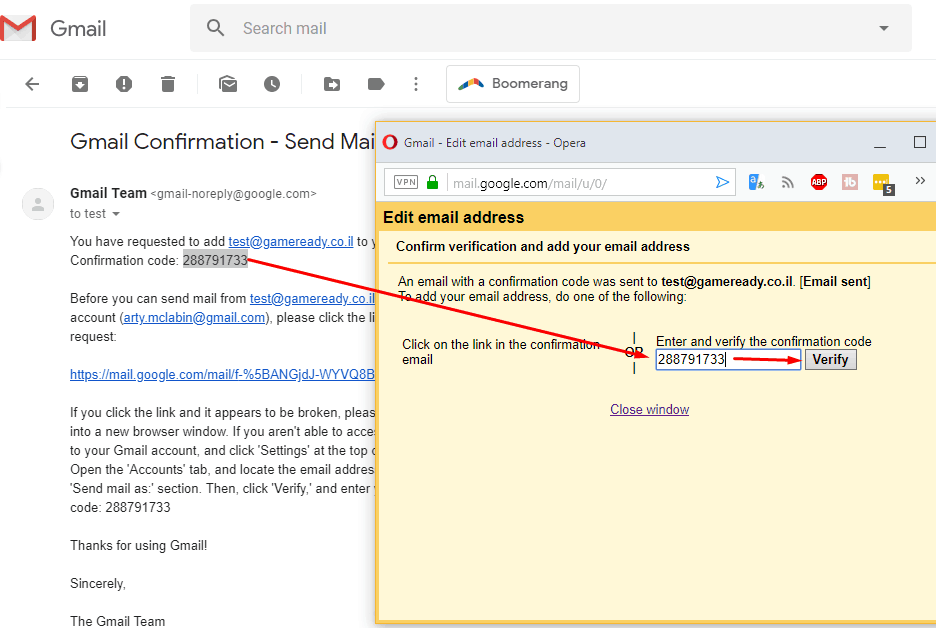
We aren’t using Gmail servers for setting up work email, since we have our own host server and domain – [email protected]. Please follow screenshots below and see how to set it up with Gmail.

                                                                                    ⚠️ In step 2, pay attention to enter your full email as username, including @gameready.co.il                                                                                      (Please use your real name, not something vague that makes it hard for the team to find you in emails)

An email will arrive to the work email address, but it will be automatically forwarded to your personal email address.

In other words – you can see that email in your personal email’s inbox.

All future emails that get sent to your work email address will behave like this (so you dont need to worry that you cant see work emails).

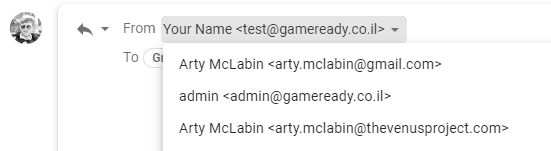
Now you can send/respond to work emails from your personal email address (it will show up as if you are responding from your work email address). 

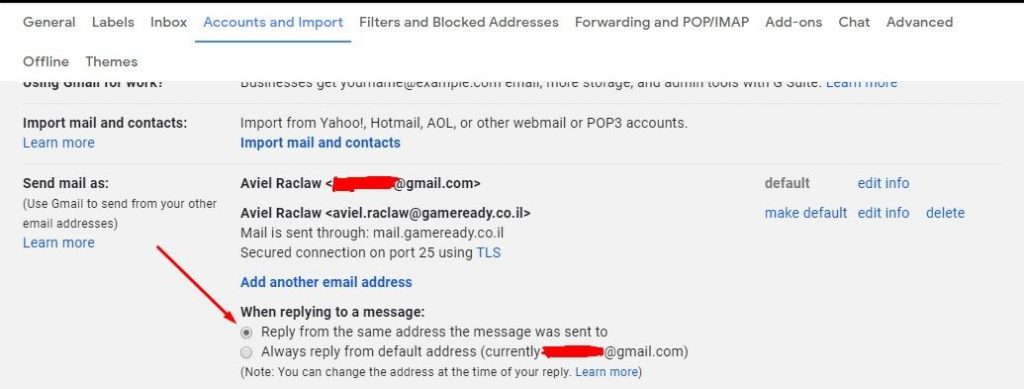
Now go to settings, accounts and import tab, and make sure this option is chosen (This is so you will reply with the correct email to work/personal emails):

mail procedure

at last, create a filter to never put work emails to spam:

Matches: from:(*@gameready.co.il)

+

Matches: from:(*@gameready.dev)

Apply the effect called “Never send it to Spam”.

Additional Step for PoCs (GM, Sales, CS, HR, but not Mentors)

You should have received an email with a signature to attach to your work email. Now is the time to do it!

(If you didn’t – wait a day or 2, and if still didn’t receive it by then – ask the person who added you to Trello for it)

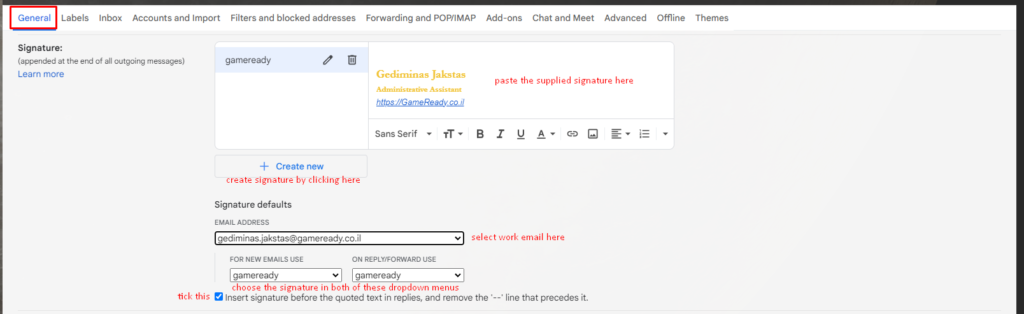
Go to settings “General” tab and scroll down until “signatures” part. “create new” signature there and paste the supplied signature from the email.

After that, slightly lower, select the work email and select the signature for both “FOR NEW EMAILS USE” and “ON REPLY/FORWARD USE”. Also tick the “Insert signature before the quoted text in replies, and remove the ‘–‘ line that precedes it” option too.

Dont forget to click “save changes” at the bottom afterwards!